> For the complete documentation index, see [llms.txt](https://help.stockcharts.com/llms.txt). Markdown versions of documentation pages are available by appending `.md` to page URLs; this page is available as [Markdown](https://help.stockcharts.com/scanning-and-alerts/technical-scans/using-the-sample-scan-library.md).
# Using the Sample Scan Library
Scans can be complicated, and learning to write effective scans takes time, but you don't always have to start from scratch.
The Sample Scan Library offers a wide range of already-written scans for you to run as-is or use as the basis for your own custom scans.
## Accessing the Sample Scan Library
The quickest way to access the Sample Scan Library is from the **Scans & Alerts** menu at the top of most pages on our site.
You can also access the Sample Scan Library from the **Your Scans** area of [Your Dashboard](https://stockcharts.com/panels/). Click on the **More** button and select Sample Scan Library from the dropdown menu.
## Parts of the Sample Scan Library
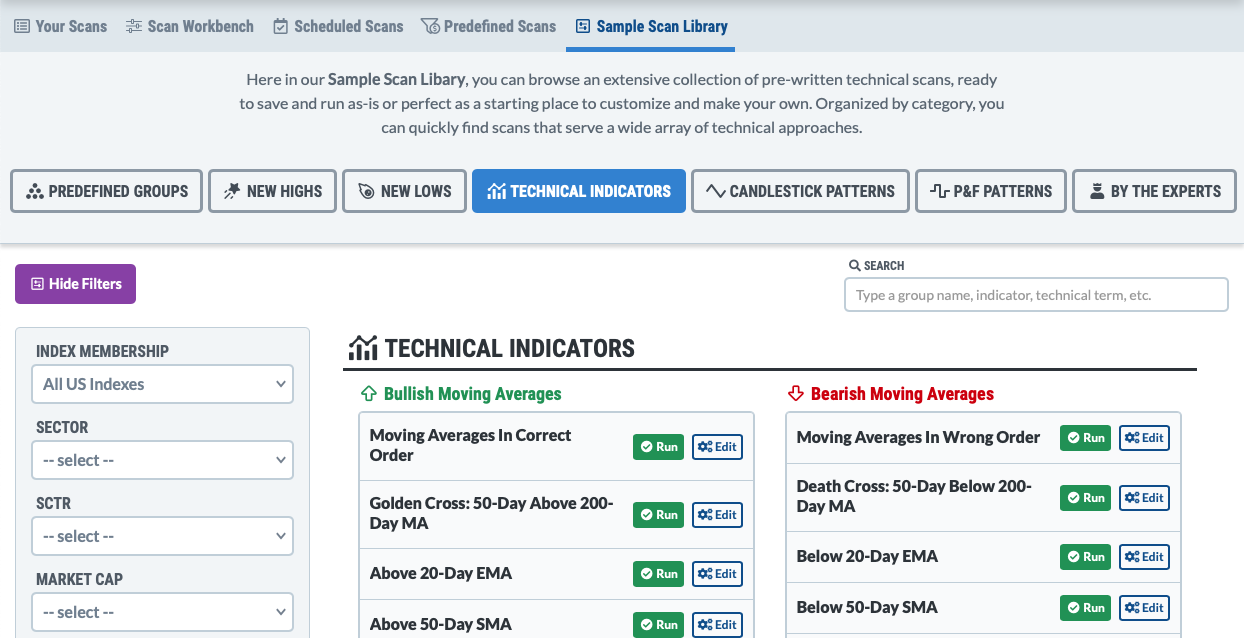
The image below shows the Sample Scan Library.
The buttons along the top allow users to choose different categories of sample scans, with the Technical Indicators category selected by default. Other categories show scans based on new highs/lows, candlestick patterns, or P\&F patterns. The Predefined Groups category allows users to compile a list of symbols in a group (e.g. all the stocks in the S\&P 500). The By The Experts category features sample scans by expert technical analysts.
Once you select a category, relevant sample scans are shown for that category, typically with bullish scans on the left and bearish ones on the right. A search box at the top right allows you to search all the scans in that category by keyword.
A green **Run** button next to each sample scan allows you to run the scan right from the library. The scan results for sample scans are exactly like the scan results you get from running custom scans in the Advanced Scan Workbench.
{% hint style="info" %}
**Learn More:** [Working with Scan Results](/scanning-and-alerts/technical-scans/working-with-scan-results.md) | [Advanced Scan Workbench](/scanning-and-alerts/technical-scans/advanced-scan-workbench.md)
{% endhint %}
The blue **Edit** button next to each sample scan opens the scan in the Advanced Scan Workbench, so you can modify the scan clauses to meet your specific requirements.
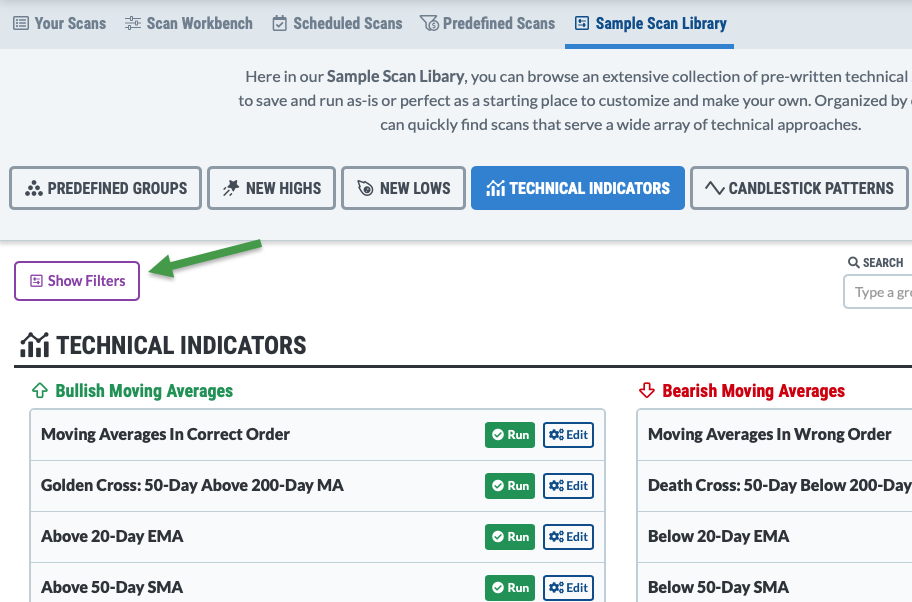
The purple **Show/Hide Filters** button at top left allows you to apply filters to your sample scan. For example, you can limit the scan results to symbols that trade options, symbols within a certain sector or symbols whose market cap falls in a specific range.
## Customizing a Sample Scan with Filters
By default, sample scans are run against stocks that are members of major US indexes, but users can set filters to change the stocks that will be checked when the sample scan is run.
In addition, users can limit scan results for the sample scan based on other technical criteria.
### Accessing Sample Scan Filters
Use the purple **Show Filters** button at top left of the Sample Scan Library to open the filters panel on the left. When the panel is open, the purple button becomes a **Hide Filters** button that can be used to close the panel.
### Available Sample Scan Filters
Users can limit their sample scan results based on the following filters:
**Index Membership**: By default, scan results are limited to stocks in major US indexes, but this setting can be changed using the Index Membership filter.
**Sector:** Limit sample scan results to symbols in a specific sector. Both US and Canadian sectors are available.
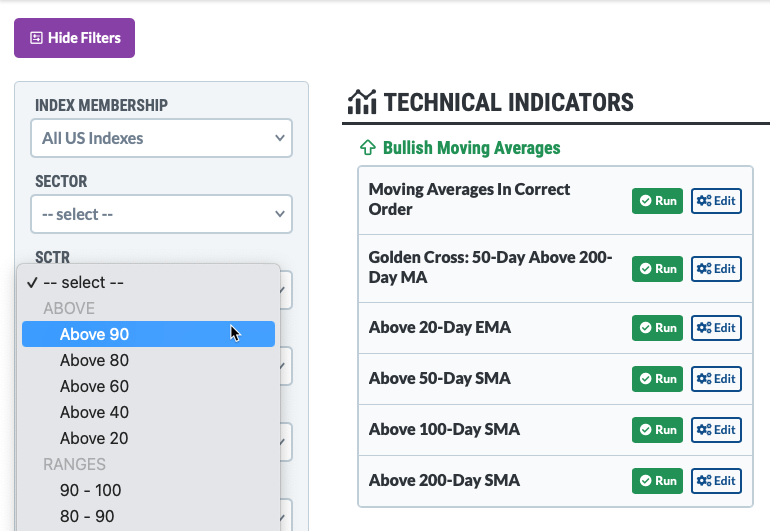
**SCTR**: Limit sample scan results to symbols whose SCTR value is in a certain range.
**Market Cap**: Limit sample scan results to symbols with a market cap in a certain range.
**Dividends:** Limit sample scan results to symbols that do or do not pay dividends, or whose yield or dividend values fall in a certain range.
**EPS:** Limit sample scan results to symbols whose EPS value falls in a certain range.
**P/E Ratio:** Limit sample scan results to symbols whose P/E Ratio value falls in a certain range.
**Options:** Limit sample scan results to symbols that do or do not trade options.
### Changing Sample Scan Filters
To change one or more filter values, expand the dropdown menu for that filter and choose a new value. To remove a filter, choose the **--select--** option in the dropdown menu.
{% hint style="warning" %}
**Note:** A filter based on Index Membership must always be applied, but the other filters are optional. More than one filter can be applied to your scan.
{% endhint %}
The filter(s) you selected will be incorporated the next time a sample scan is run.
{% hint style="success" %}
**Cool Tip:** if you click the **Edit** button next to a scan after applying filters, you can see the scan clauses that were added for those filters.
{% endhint %}
You can hide the filters panel using the purple **Hide Filters** button at top left or the button at the bottom of the filters panel. The filters will continue to be applied to your sample scans even if the filters panel is hidden.
## Making a Custom Scan from a Sample Scan
In addition to modifying sample scans with filters, you can also open a sample scan in the Advanced Scan Workbench by clicking the Edit button next to the sample scan..
This is a great way to study the scan clauses used in the sample scan and learn more about how scans are written.
Sample Scans also serve as an excellent starting point for making your own custom scans. You can modify the sample scan's clauses, add your own clauses, and then save the modified scan as a custom scan in your account.
For more information on customizing and saving a sample scan in your account, please view our step-by-step tutorial, [Customizing a Sample Scan](/scanning-and-alerts/technical-scans/using-the-sample-scan-library/customizing-a-sample-scan.md).
---
# Agent Instructions
This documentation is published with GitBook. GitBook is the documentation platform designed so that both humans and AI agents can read, navigate, and reason over technical content effectively. Learn more at gitbook.com.
## Querying This Documentation
If you need additional information that is not directly available in this page, you can query the documentation dynamically by asking a question.
Perform an HTTP GET request on the following URL with the `ask` and `goal` query parameters:
```
GET https://help.stockcharts.com/scanning-and-alerts/technical-scans/using-the-sample-scan-library.md?ask=&goal=
```
`ask` is the immediate question: it should be specific, self-contained, and written in natural language.
`goal` is what the user is ultimately trying to achieve, the reason they need the answer. Sharing it helps GitBook give you a better, more relevant answer. A goal is most helpful when it describes the outcome the user wants rather than restating the question. For example, with `ask=how do I create an API token`, a goal like `build a script that syncs our docs to a CMS` lets GitBook tailor the answer to that use case.
The response will contain a direct answer to the question and relevant excerpts and sources from the documentation.
Use this mechanism when the answer is not explicitly present in the current page, you need clarification or additional context, or you want to retrieve related documentation sections.