> For the complete documentation index, see [llms.txt](https://help.stockcharts.com/llms.txt). Markdown versions of documentation pages are available by appending `.md` to page URLs; this page is available as [Markdown](https://help.stockcharts.com/scanning-and-alerts/scan-writing-resource-center/scanning-tutorials/creating-scan-templates-tutorial.md).
# Creating Scan Templates Tutorial
When you launch the Advanced Scan Workbench, this is the default scan criteria entered in the Scan Criteria box:
```
[type is stock] and [sma(20,volume) > 40000]
```
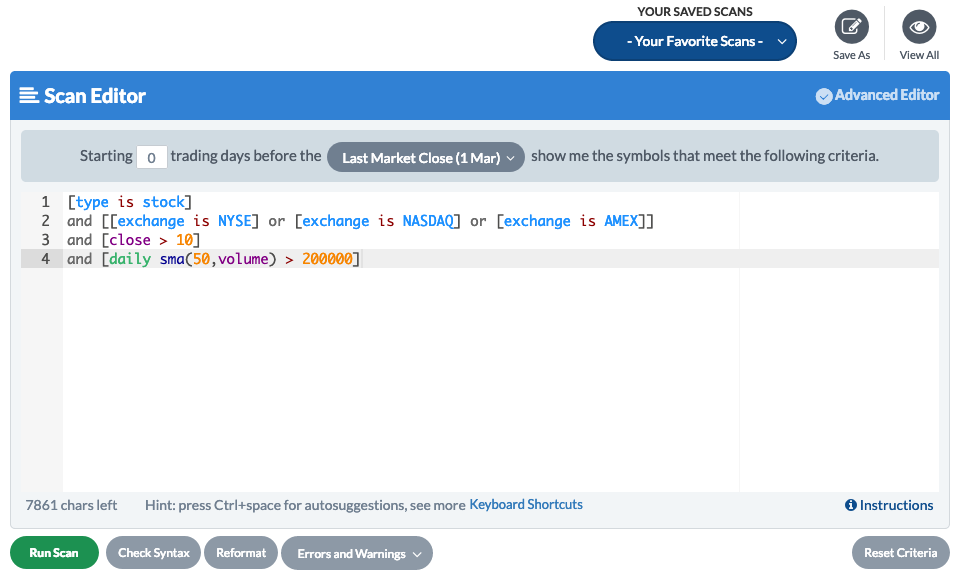
This is a pretty broad guideline, one that may include stocks that you would not normally be interested in, such as relatively thinly traded stocks, penny stocks, foreign stocks, and/or ETFs. Most people use a set of universe-defining criteria on almost all scans. Yours may be something like this:
```
[type is stock]
and [[exchange is NYSE] or [exchange is NASDAQ] or [exchange is AMEX]]
and [close > 10]
and [daily sma(50,volume) > 200000]
```
That would take a long time to type in for each and every scan you create. However, there is a workaround that can make it faster and easier to add your default universe-defining criteria to any new scan.
This tutorial will walk you step-by-step through creating and using your own scan “template.”
## Creating a Scan Template
**Step 1.**
Go to the Advanced Scan Workbench and start a new scan.
**Step 2.**
Replace the default scan criteria with the universe-defining ones you want to use in most scans.
**Step 3.**
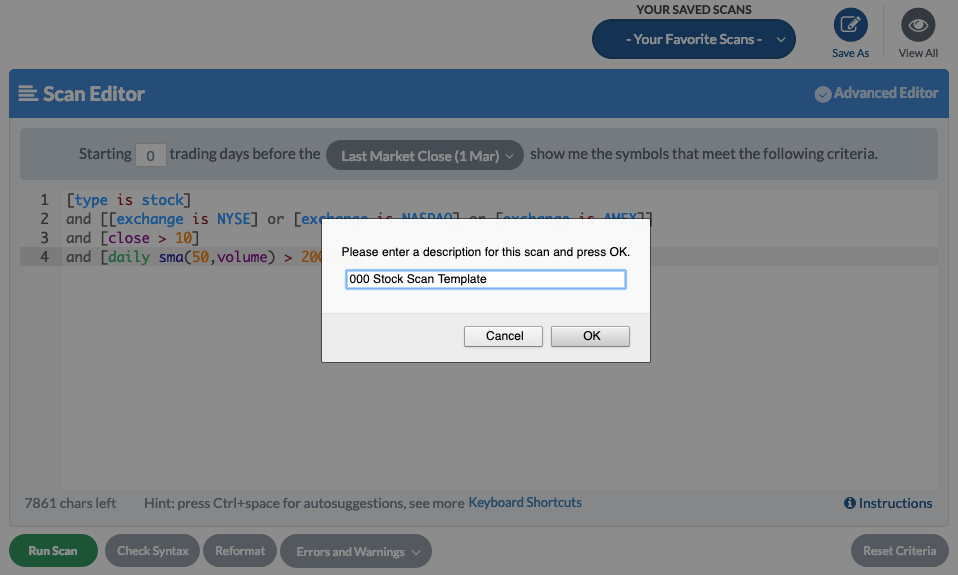
Save the scan. We recommend starting the scan name with a zero (0) so that it appears near the top of your list of scans.
That's all you need to do to create your scan template.
## Using Your Scan Template
Once you've created the template, it's simple to use it to create a new scan. Just follow these steps.
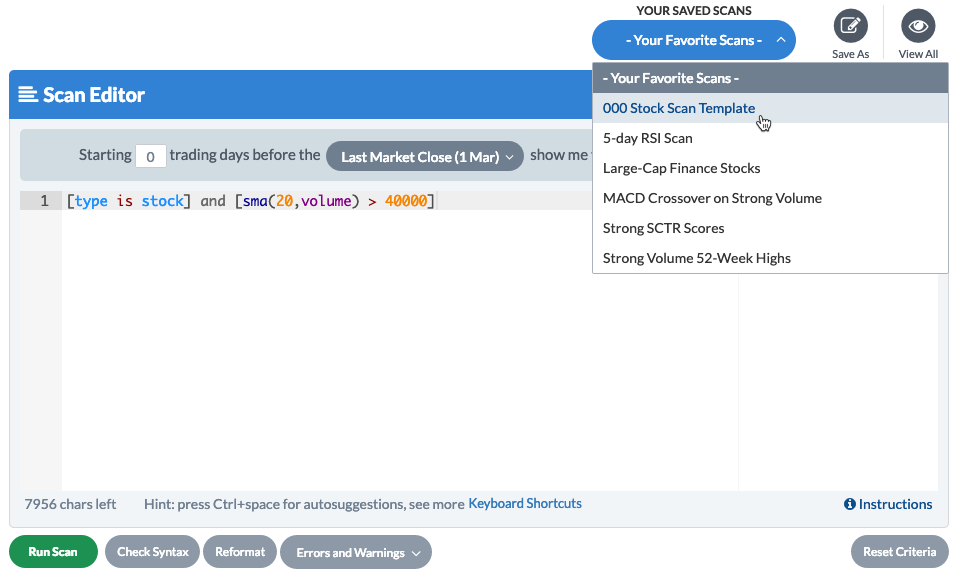
**Step 1.**
Go to the Advanced Scan Workbench and open the scan template.
{% hint style="warning" %}
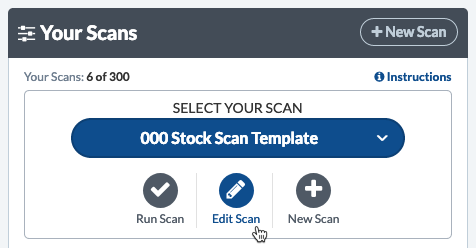
**Note:** You can also load the saved scan directly from **Your Dashboard** by choosing the scan from the **Select Your Scan** dropdown menu and clicking the **Edit Scan** button.
{% endhint %}
**Step 2.**
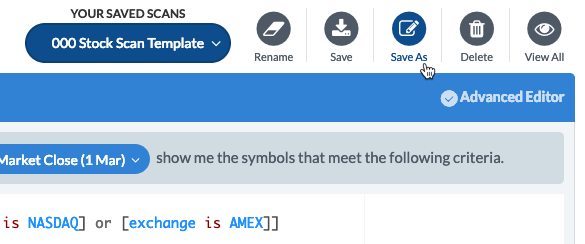
Click the **Save As** button.
**Step 3.**
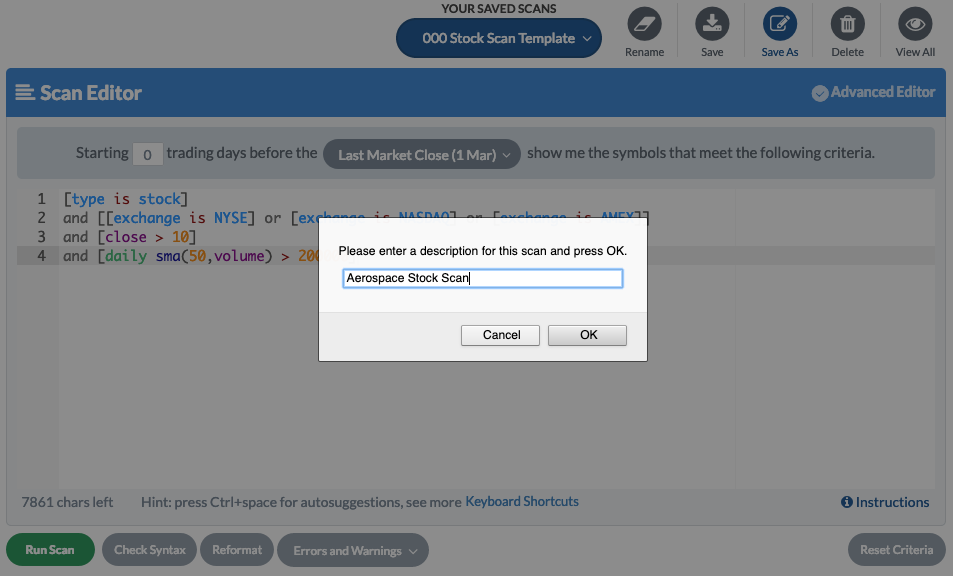
Save your scan with a name that indicates what it will be used for.
**Step 4.**
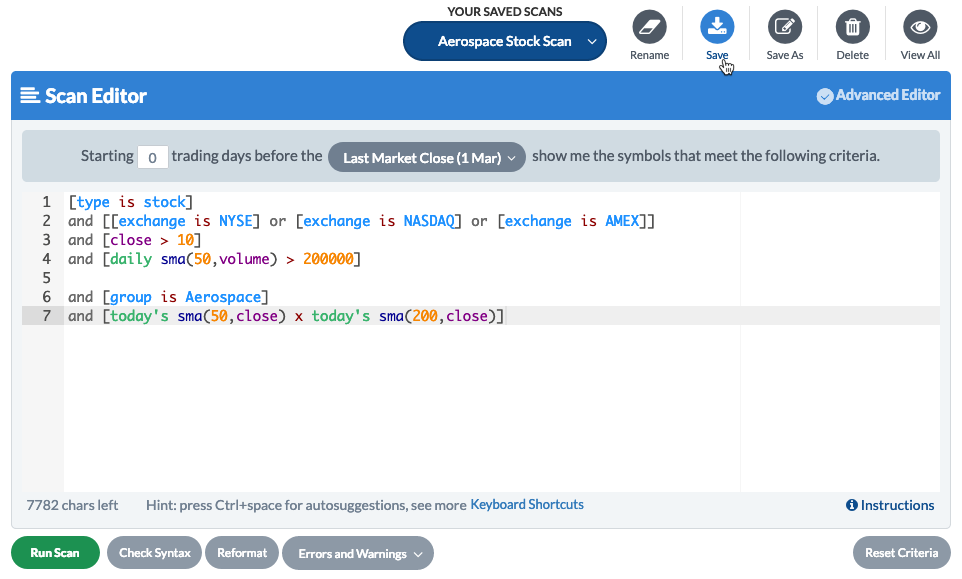
Add any additional scan criteria you want. Remember to save the scan when you're done adding criteria.
## Adding More Templates
Did you know you can add more than one template? Perhaps, in addition to the stock scan template created above, you'd like to create one with your standard criteria for scanning ETFs. To do so, just add that criteria to a new scan and save it with a descriptive name, such as “001 ETF Scan Template.”
You can now use this new template for creating ETF scans while still having your template for creating stock scans.
---
# Agent Instructions
This documentation is published with GitBook. GitBook is the documentation platform designed so that both humans and AI agents can read, navigate, and reason over technical content effectively. Learn more at gitbook.com.
## Querying This Documentation
If you need additional information that is not directly available in this page, you can query the documentation by asking a question.
Perform an HTTP GET request on the following URL with the `ask` and `goal` query parameters:
```
GET https://help.stockcharts.com/scanning-and-alerts/scan-writing-resource-center/scanning-tutorials/creating-scan-templates-tutorial.md?ask=&goal=
```
`ask` is the immediate question: it should be specific, self-contained, and written in natural language.
`goal` is what the user is ultimately trying to achieve, the reason they need the answer. Sharing it helps GitBook give you a better, more relevant answer. A goal is most helpful when it describes the outcome the user wants rather than restating the question. For example, with `ask=how do I create an API token`, a goal like `automate deployments from our CI pipeline` lets GitBook tailor the answer to that use case.
The response will contain a direct answer to the question and relevant excerpts and sources from the documentation.
Use this mechanism when the answer is not explicitly present in the current page, you need clarification or additional context, or you want to retrieve related documentation sections.